

Explore asset relationships
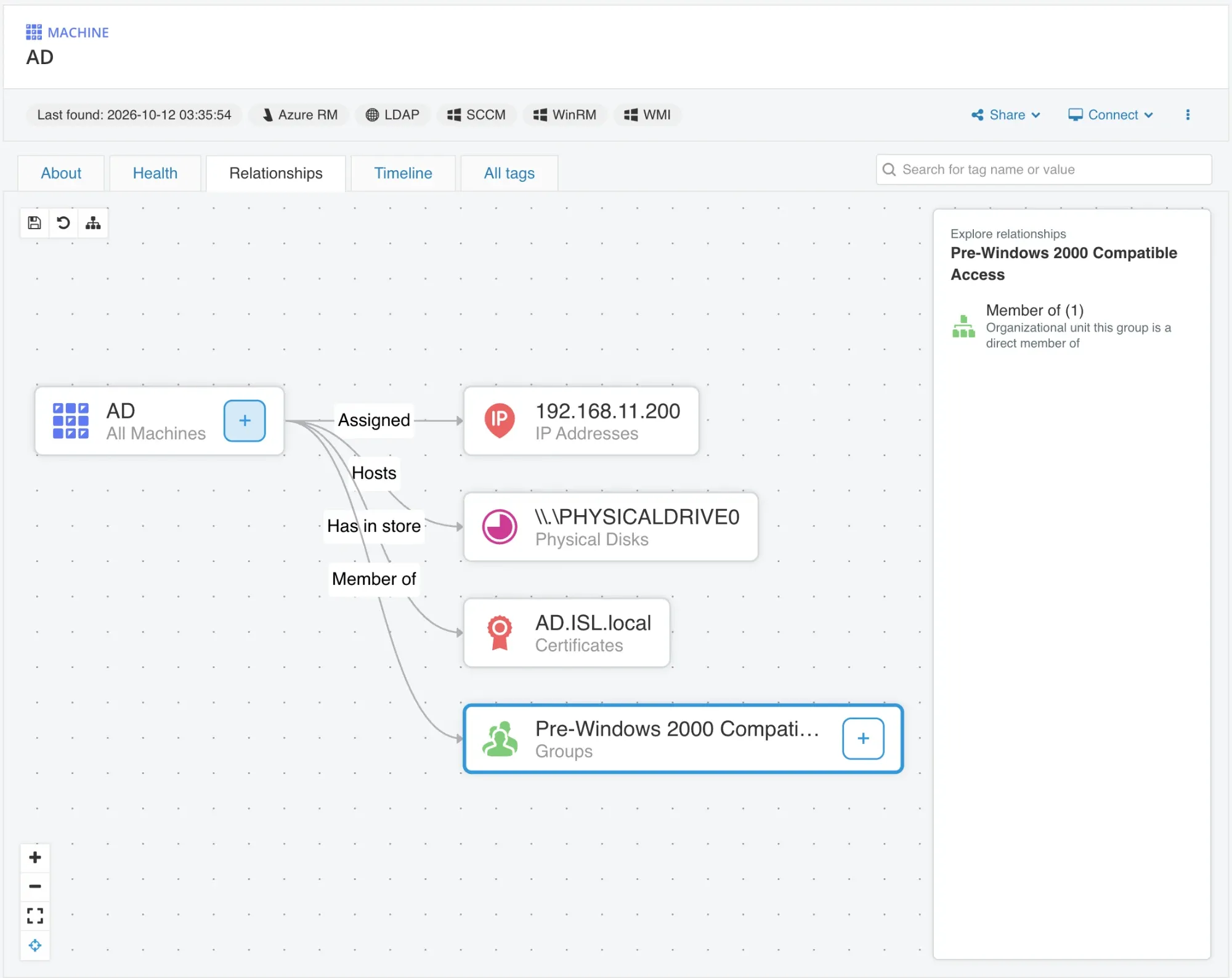
Use the Relationship Graph on the Relationships tab in Properties to see how an asset connects to other assets, for example which groups a machine belongs to or which disks it hosts.
Before you begin
Section titled “Before you begin”- You need a role that can open Properties. Viewers cannot.
Build the Relationship Graph
Section titled “Build the Relationship Graph”- Open the asset in Properties, for example from Tables by right-clicking and selecting View in Properties.
- Select the Relationships tab. The asset is shown as a node in the Relationship Graph.
- Click + on the node. The Explore relationships panel lists every relation the asset has to other assets.
- Select a relation, for example Member of.
- Choose which of the related assets to add to the graph.
- Repeat from any node in the graph to follow the relations further.
Only relations that exist are listed. If a relation has no asset on the other side, it is hidden.
Arrange the graph
Section titled “Arrange the graph”- Drag a node to move it.
- Select several nodes with Cmd or Shift to move them together or remove them from the graph.
- Click Rearrange to arrange all nodes in the graph in a clear, readable order.
Save the graph
Section titled “Save the graph”- Click Save to store the assets in the graph and their positions.
- Click Revert at any time to go back to the last saved state.
The saved graph belongs to the asset and is shown to every user who has access to it.
Open a related asset
Section titled “Open a related asset”Click the name of an asset in the graph to open its Properties.