

Amazon Web Services (AWS)
Integrating AWS with vScope allows you to include AWS-managed assets in your inventory, improving asset visibility and management. The AWS credential collects EC2 instances, EBS volumes, Security Groups, Lambda functions, RDS databases, Load Balancers, and S3 buckets. It does not collect IAM users as inventory, though Test Credential does run a validation check against IAM (see step 4). This guide provides the steps to connect vScope to your AWS environment and enable asset discovery.
Prerequisites
Section titled “Prerequisites”- Administrator access to the AWS Console to create an IAM user and policy.
- vScope only needs read access. See AWS permissions reference for the exact list of actions.
Set up AWS for vScope (via console)
Section titled “Set up AWS for vScope (via console)”1. Create a read-only IAM policy
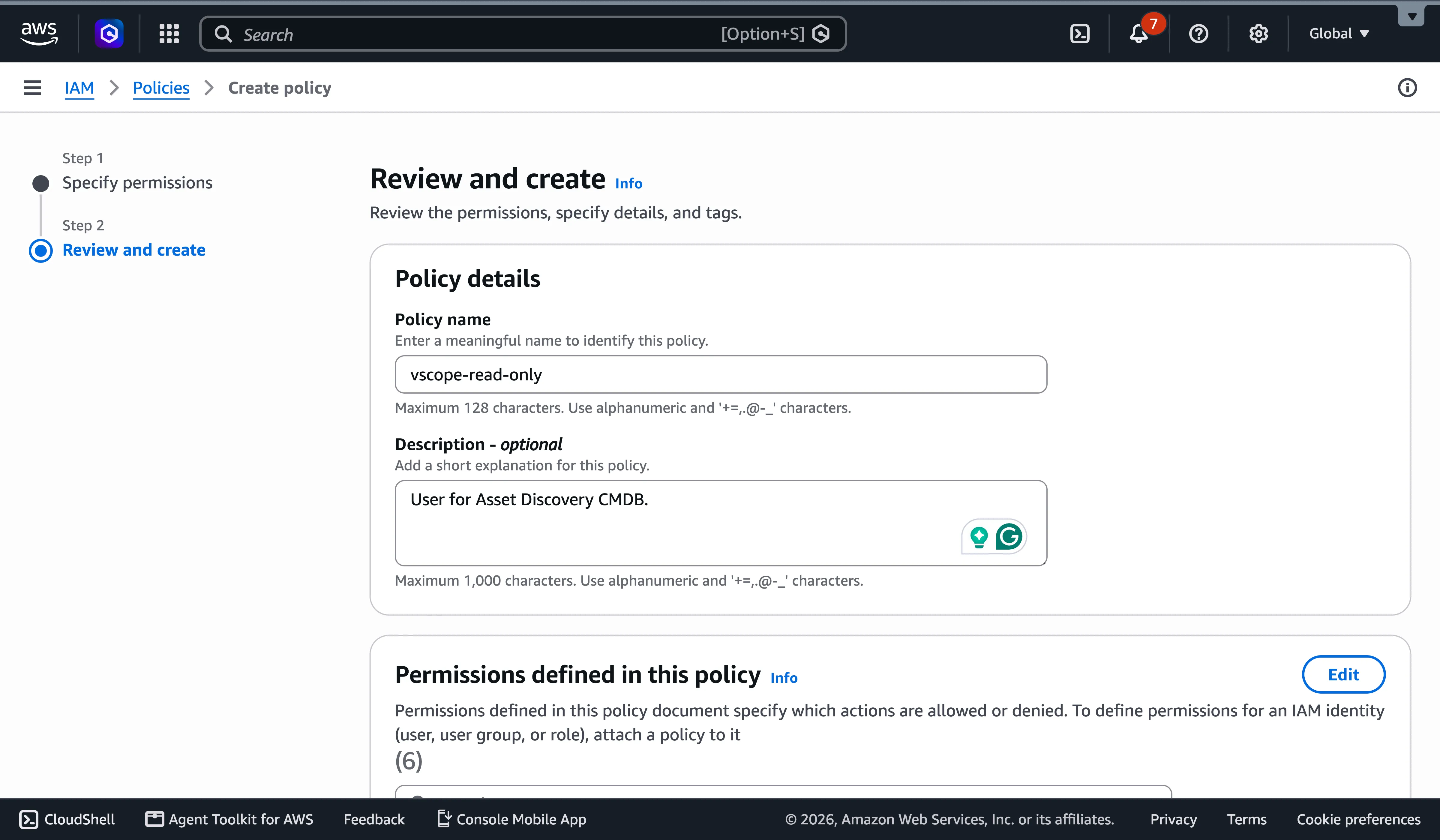
Section titled “1. Create a read-only IAM policy”- In the AWS Console, go to IAM > Policies > Create policy.
- Switch to the JSON tab and paste a policy containing the read-only actions from the AWS permissions reference, for example:
{ "Version": "2012-10-17", "Statement": [ { "Effect": "Allow", "Action": [ "ec2:DescribeAccountAttributes", "ec2:DescribeInstances", "ec2:DescribeVolumes", "ec2:DescribeSecurityGroups", "ec2:DescribeRegions", "ec2:DescribeTags", "lambda:ListFunctions", "lambda:GetFunction", "rds:DescribeDBInstances", "rds:DescribeDBClusters", "elasticloadbalancing:DescribeLoadBalancers", "elasticloadbalancing:DescribeTargetGroups", "elasticloadbalancing:DescribeTags", "s3:ListAllMyBuckets", "s3:GetBucketLocation", "s3:GetBucketTagging", "iam:GetUser" ], "Resource": "*" } ]}- Click Next, name it (e.g.,
vScope-ReadOnly), and click Create policy.
2. Create an IAM user for vScope
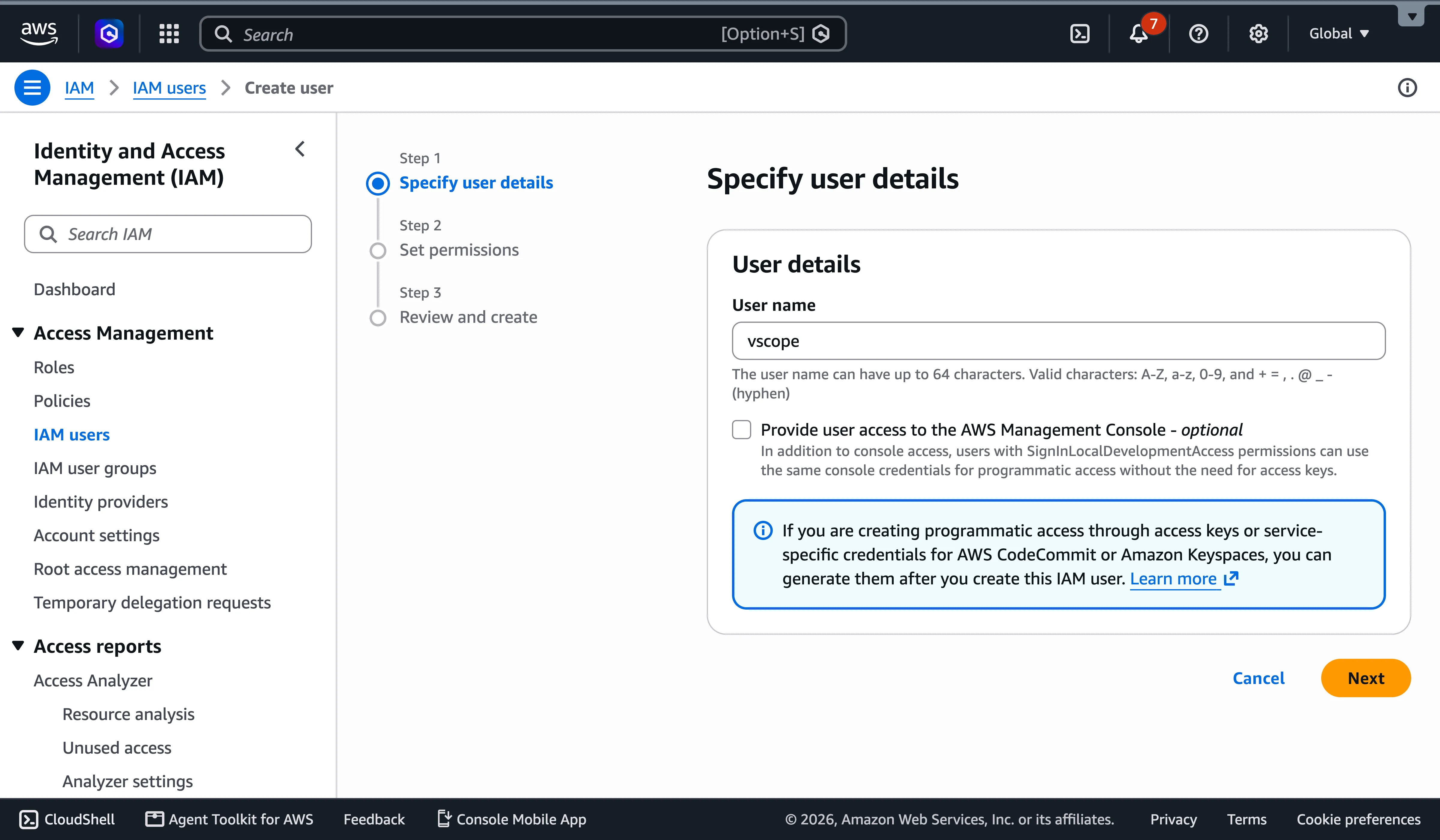
Section titled “2. Create an IAM user for vScope”- Go to IAM > Users > Create user.
- Enter a name (e.g.,
vscope). Leave Provide user access to the AWS Management Console unchecked — vScope only needs programmatic (API) access.
- On the permissions step, choose Attach policies directly and select the
vScope-ReadOnlypolicy you created above. - Review and click Create user.
3. Generate an access key
Section titled “3. Generate an access key”- Open the new user and go to the Security credentials tab.
- Under Access keys, click Create access key.
- For Use case, select Third-party service (or Application running outside AWS) since vScope connects from outside AWS. Acknowledge the warning about long-term credentials to continue.
- (Optional) Add a description tag, e.g.
vScope discovery. - Click Create access key, then copy the Access Key ID and Secret Access Key, or download the
.csv.
4. Connect the credential in vScope
Section titled “4. Connect the credential in vScope”- In vScope: Discovery Manager → add Amazon Web Services credential.
- Enter the Access Key ID and Secret Access Key from the previous step.
- Click Test Credential, then run a discovery to confirm AWS assets appear.
5. (Optional) Enable CloudWatch utilization metrics
Section titled “5. (Optional) Enable CloudWatch utilization metrics”- In the credential’s advanced options, enable Use CloudWatch to collect storage/utilization metrics for S3 buckets and databases.
- This is off by default and may incur additional AWS costs — see AWS permissions reference for the extra IAM actions it needs.
Using an existing IAM user
Section titled “Using an existing IAM user”If you prefer to reuse an existing IAM user instead of creating a dedicated one, make sure it only has the read-only policy above attached (avoid users with broader permissions), then add a new access key:
- Go to IAM > Users > {user} > Security credentials.
- Under Access keys, click Create access key and follow the same use-case and copy steps as above.
Next steps
Section titled “Next steps”- Need the exact list of read actions, or troubleshooting missing data? See AWS permissions reference.
- AWS recommends rotating access keys periodically; when you do, create the new key, update the credential in vScope, then deactivate and delete the old key.