

Duplicate Assets
vScope automatically identifies and merges assets across any data source. Merging is based on numerous criteria, e.g. serial number, domain, and name. If you find multiple representations of an asset in vScope, you can handle this in different ways.
Confirm duplicates in the data source
Section titled “Confirm duplicates in the data source”Are you sure that it’s a duplicate? Sometimes, what’s considered to be ‘one’ asset can be found multiple times in e.g. Active Directory Azure or VMware due to replicates of the asset that’s lingering in the data source. In a table, you can ensure that the asset is a duplicate or not by adding the column Domain, Azure AD Device ID, Intune Device ID, depending on the data source. If the device IDs are unique, the IT assets are also unique and should be further investigated in the data source. If the domains differ on the duplicated assets, please see next step.
Review Discovery suggestions
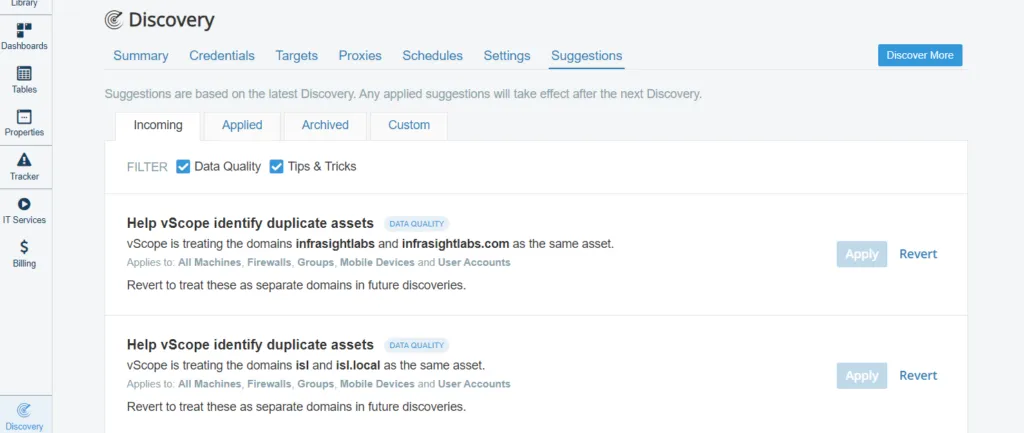
Section titled “Review Discovery suggestions”You can improve vScope’s handling of duplicate assets by reviewing suggestions. Go to Discovery Manager-> Suggestions-> Incoming to discover what improvements can be made in your environment. For instance, domain names such as company.local and company.com, are not always considered as the same domain in vScope. Applied suggestions are found in the Applied tab whereas Reverted suggestions end up in the Archived tab.*
Create your own domain-matching rules
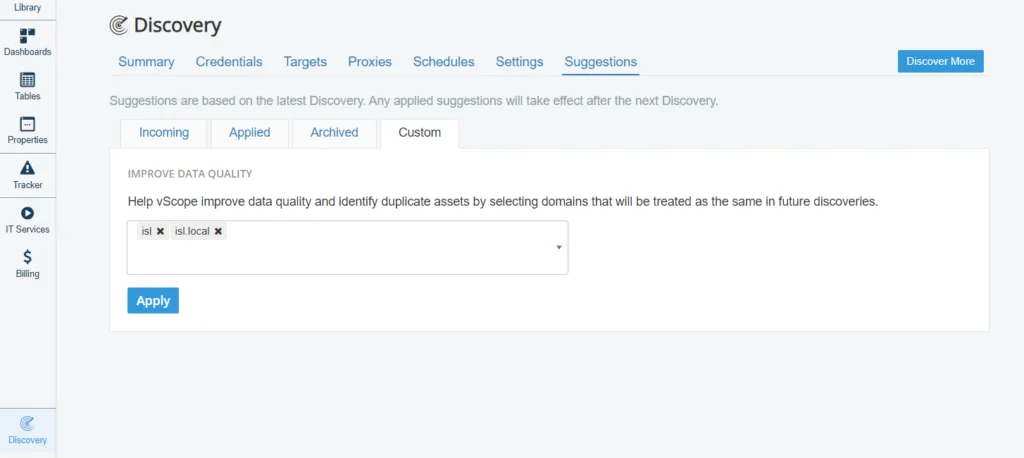
Section titled “Create your own domain-matching rules”In some cases, the domain names may differ to such an extent that vScope is unable to match them. This is easily resolved in the Custom tab on the Suggestions page. By clicking the dropdown list, you’ll find all the inventoried domains. Click the domains you want to treat as the same and then click Apply.**
*You need to be an administrator in vScope to review suggestions. Changes in suggestions are first applied after the next full discovery.
**Make sure you are certain the domains should be treated as the same before you do a full discovery.
Handling duplicate devices from Azure in vScope
Section titled “Handling duplicate devices from Azure in vScope”In most cases, these are not actual duplicate assets, but rather the result of incorrect device onboarding in Entra ID, Defender, and/or Endpoint Manager, (see Troubleshooting: Duplicates and Stale Objects in Microsoft Entra ID). You can configure vScope to treat these duplicates as one single asset.
How its done
Section titled “How its done”- Go to Discovery Manager → Credentials → AzureRM
- Enable Merge Duplicate Devices
- Click Save
How it works
Section titled “How it works”- vScope identifies devices with the same hardware ID and keeps only the most recently registered one.
- Azure/Entra ID is untouched – duplicates remain there; vScope just shows one device.
- The setting is off by default; after turning it on, results update on the next Azure discovery.
When to use
Section titled “When to use”You find that duplicate devices in Azure are reflected in vScope and you don’t want to, or can, clean them in Azure.