

Import Tags from XLSX
Objective: Import manual tag values from an XLSX file into vScope.
Here is a quick walkthrough of how it’s done:
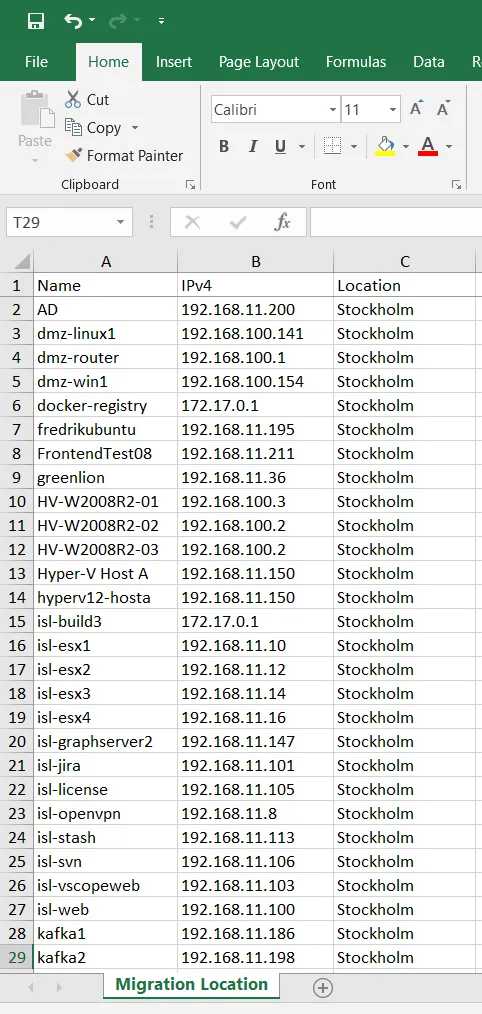
- Upload file – Go to Tags → Import from file, pick the XLSX, click Next.
- Match assets – Choose the Asset type and map an identifier column (e.g., Name, Serial, Email, MAC) to the corresponding vScope tag. This column must uniquely match.
- Map values – Select the column containing the values you want to import. Choose an existing tag or create a new one (e.g., Location).
- Preview – Review matches and warnings. If an asset can’t be matched or is duplicated, it won’t import.
- Confirm – Finish the import. Values are added as Manual. Existing manual values are replaced; discovery-managed tags are untouched.
Verify
Section titled “Verify”- Open a relevant Table or the asset’s Properties panel and spot-check the imported tag.
- If values are missing, re-check the identifier mapping and duplicate warnings in the preview step.
- Unmatched rows leave existing values unchanged.
- You can delete imported manual values later from Tables or Properties.