

Build and share your first table
Turn your newly discovered data into something useful and shareable.
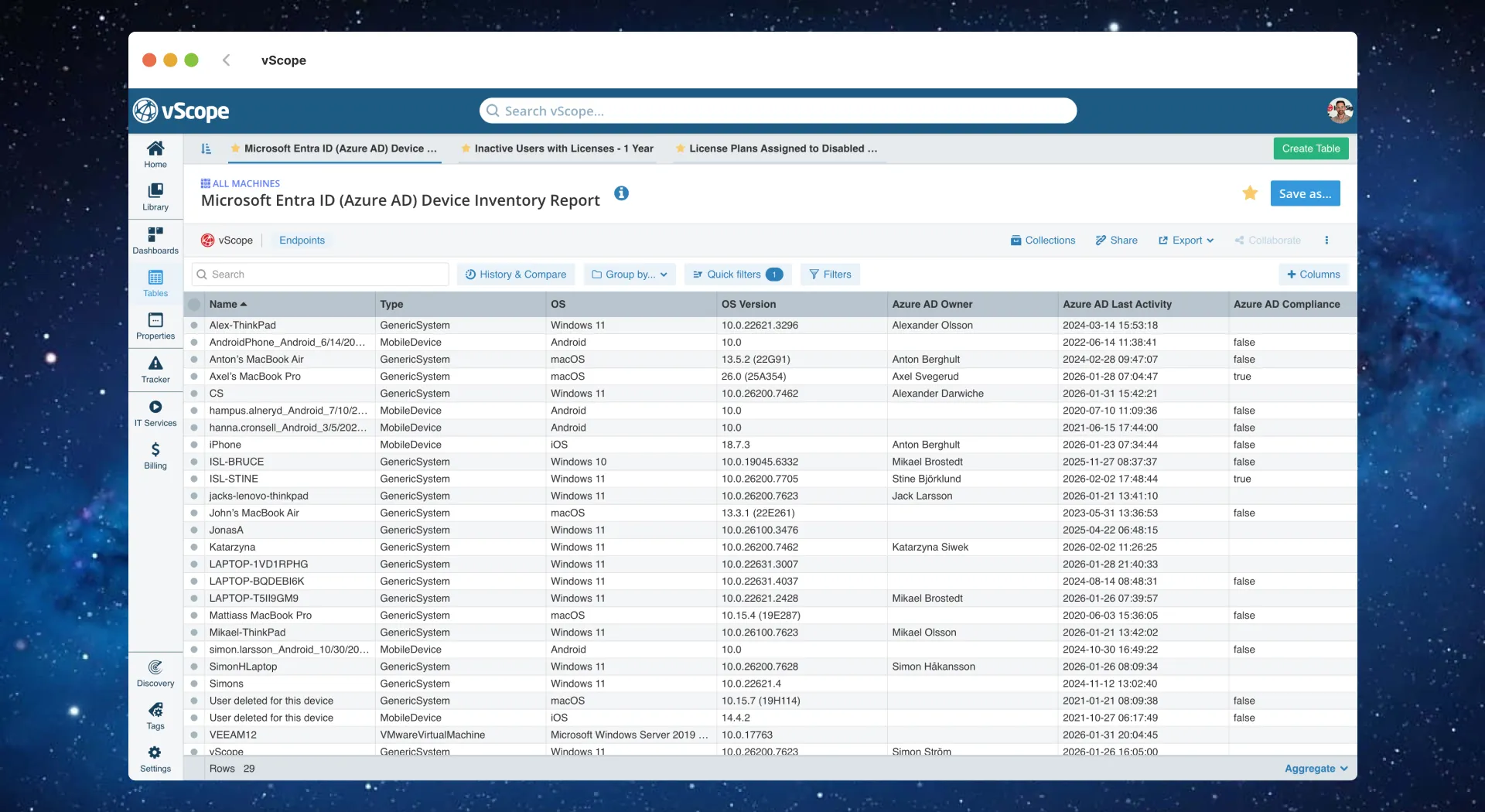
- Go to Tables → New Table.
- Pick an asset type that matches your added data sources (e.g., Computers from Intune, Users from EntraID Virtual Machines from VMware).
- Click + Columns add 3-5 columns (tags) that prove the data is correct – hostname, OS, last found date, owner, location, or subscription.
- Click Filter to narrow down the results to a small subset if needed (e.g., IP range, group, domain or resource group).
- Save the table with a clear name (e.g., “AD Computers – Starter View”).
- Click Collaborate and grant access to a teammate or group.
Expected result
Section titled “Expected result”- Table shows real data from your first discovery.
- Teammate receives an email notification, login to vScope using SSO, and can open the table.
Troubleshooting
Section titled “Troubleshooting”- Missing columns? Ensure that tags exist for the selected asset type; check discovery logs if cells are empty.
- No data? Return to Run first discovery & verify and confirm assets are present.
- Sharing blocked? Verify your account has permission to share content.
Next wins
Section titled “Next wins”- Build a simple dashboard from this table: Dashboard guide.
- Track changes or compliance on this data: Tracker guide.
- Add business context (owner/cost): Tags guide.
- Share with your team: Permissions guide.