

High memory consumption
Checking vScope RAM Consumption
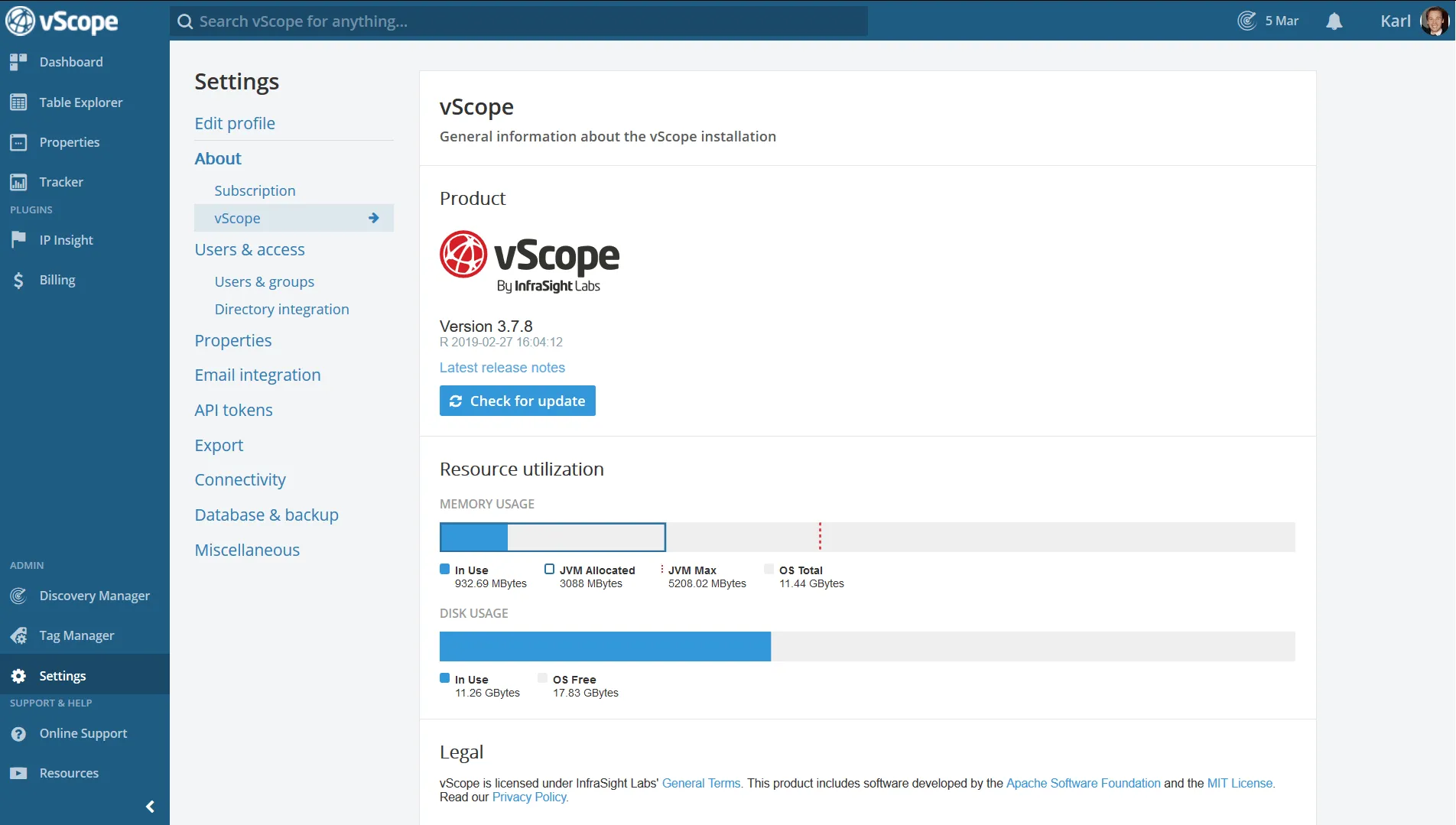
Section titled “Checking vScope RAM Consumption”vScope’s memory usage can be viewed under About -> vScope in settings. The bar shows the actual database size as well as the Java virtual machine allocation (JVM). The JVM-value is what is shown in e.g. the Windows Task Manager.
Changing the RAM for vScope
Section titled “Changing the RAM for vScope”If the memory consumption is too high you may have to change the RAM settings to optimize vScope’s performance.
It’s not just enough to give the vScope server more RAM, since vScope’s dedicated RAM is static and configured at the installation.
To change the RAM settings we need to re-run the installer. (No worries, your vScope data isn’t affected)
This can be done by either:
Option 1: Run installer
Section titled “Option 1: Run installer”- Stop the vScope service
- Run the latest installer of vScope (found Here)
- Do the advanced installation by uncheck “Express Installation”
- Set the dedicated RAM under the vScope Core Settings
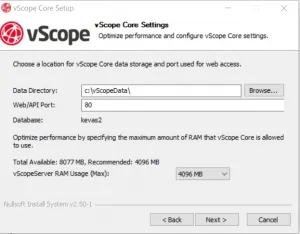
- Finish the installation and start the vScope service again. (Make sure that the data directories matches the current installation settings)
- Done!
Option 2: From the registry
Section titled “Option 2: From the registry”- Stop the vScope service
- Run regedit.exe and navigate to:
HKEY_LOCAL_MACHINE\SOFTWARE\WOW6432Node\Apache Software Foundation\Procrun 2.0\vScopeServer\Parameters\Java - Right-click the key named Options and select Modify… It contains the maximum heap setting, for example
-Xmx4096m - Change the -Xmx value to the new RAM setting, for example
-Xmx4096m(4 GB) to-Xmx8192m(8 GB). Leave any other options in the key unchanged. - Save and re-start the vScope service